
Gaussian Reference – Utilities

Gaussian 26W Reference
A number of utility programs are included with Gaussian 26W. They are accessible via the various items on the Utilities menu in the program’s main window. We will consider them here in the same order as they appear in that menu, beginning with the NewZMat facility.
The NewZMat Facility
The NewZMat File Conversionwindow controls file conversions. It is reached via the NewZMat item on the Utilities menu. By default, it converts files to Gaussian 26W input files (.GJF files). It is an interface to the standard NewZMat utility which is included with Gaussian.
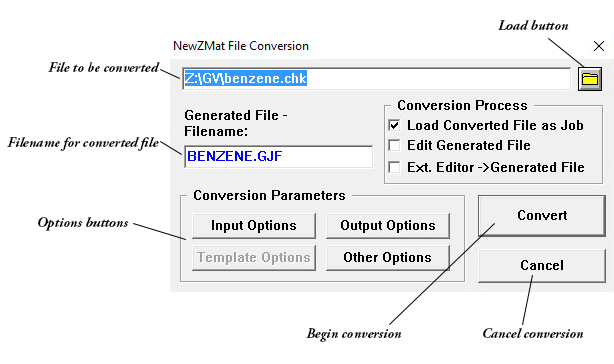
The Generated Filename field is used to specify the name of the converted file. The default is the filename of the file to be converted with the extension GJF.
The Convert button begins the conversion of the designated file, using currently set options.
The Cancel button returns you to the Job Processing window without converting any file.
The Load button (appears as a file folder icon) can be used to load a different input file to be converted.
The Conversion Process Area
Load Converted File as Job
If checked, load the converted job into memory. The default is checked if the selected file is not a .GJF file.
Edit Generated File
If checked, edit the new input file after converting using the Job Edit window (default is unchecked).
Ext. Editor → Generated File
If checked, edit the new input file after conversion using the designated external editor (default is unchecked).
Options Buttons
Input Options
Opens the NewZMat Input Options window.
Output Options
Opens the NewZMat Output Options window.
Other Options
Opens the Other Options window.
Template Options
This option is not implemented in the current version of Gaussian 26W.
The NewZMat Input Options Window
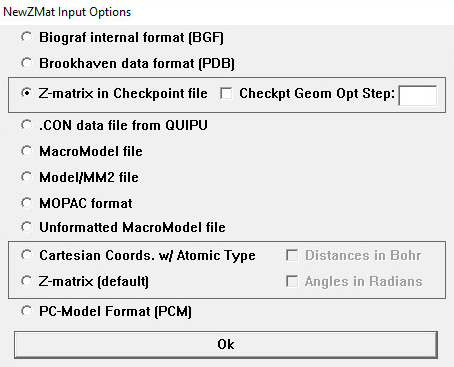
The radio buttons on this window specify the format of the file to be converted:
| Radio Button | NewZMat Option |
|---|---|
| Biograf internal file format (BGF) | -ibgf |
| Brookhaven data format (PDB) Brookhaven protein data bank format. |
-ibkv |
| Z-matrix in Checkpoint file Extract a Z-matrix from a Gaussian checkpoint file, from the optimization step indicated in the Checkpt Geom Opt. Step field. |
-ichk |
| .CON data file from QUIPU | -icon |
| MacroModel file | -immodel |
| Model/MM2 | -imodel |
| MOPAC format | -imopac |
| Unformatted MacroModel file | -iummodel |
| Cartesian Coords. w/ Atomic Type | -ixyz |
| Z-matrix (this is the default) | -izmat |
| PC-Model Format (PCM) | -ipcm |
Check Boxes
Distances in Bohr
If checked (unchecked is the default), distances in the file to be converted are assumed to be in Bohr rather than angstroms (-ubohr).
Angles in Radians
If checked (unchecked is the default), angles in the file to be converted are assumed to be in radians rather than degrees (-urad).
The NewZMat Output Options Window
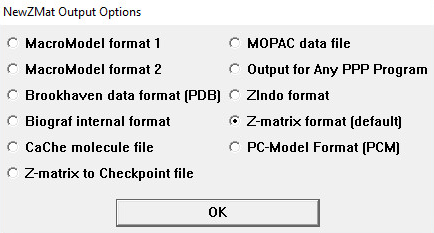
The radio buttons on this window specify the format of the generated file:
|
Radio Button
|
|---|